| Oracle Fusion – Introduction To BIP | ||
 |
||
 |
||

|
|
|
||
 |
||
| Navigate to “Reports and Analytics”
|


|
||
| It is always recommended to create report in Custom folder so release won’t impact your custom reports.
|
||
 |


| Click on Browse Catalog to open BIP
|
||

Note BIP have different URL |
||
| There is another way we can open BIP is copy Fusion Cloud URL and append it by Analytics
Abc.fusioncloud.com/analytics
|


| Getting BIP Desktop Tool from BIP Home Page
|
||
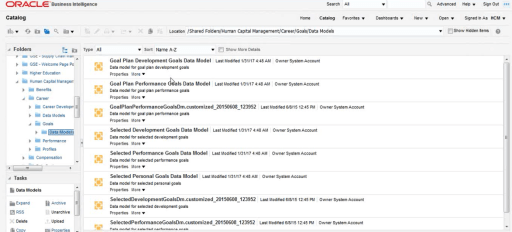
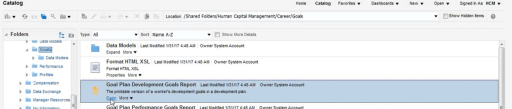
| Where are seeded Oracle reports stored
|
||
 |


Click on “Data Model → Expand” |
||
 |
||
| Open report from BIP
|
 |
||
| Creating New Report
Creating Data Model
Select Data Model from New dropdown. |
||

Event Triggers and Flexfield are NOT used in SAAS model; it is used in on premise Fusion model. |

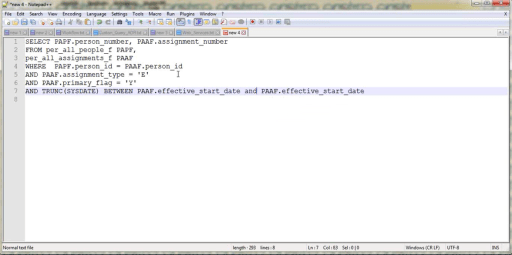
| Write a sql script in any of the familiar editor
|
||

|
||
| Select “SQL Query”
|

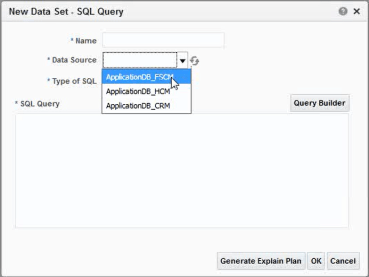
FSCM : For Finance application data source HCM: For HCM application data source CRM: For CRM application data source |
||
 |
||
 |
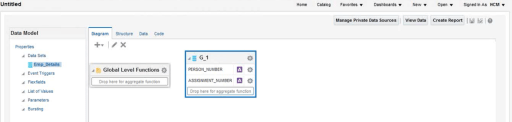
Data tab can be used to view data in Tree structure or tabular format.
|
||
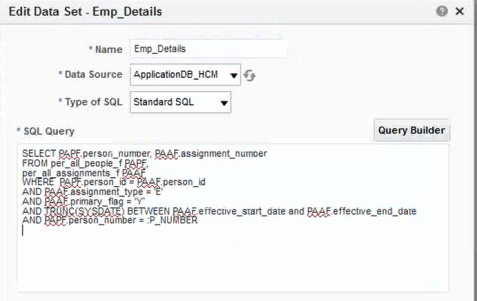
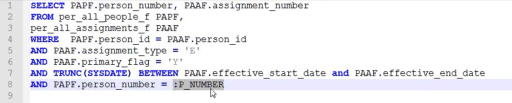
| Adding binding variable
|
||
 |

 |
||
 |
||
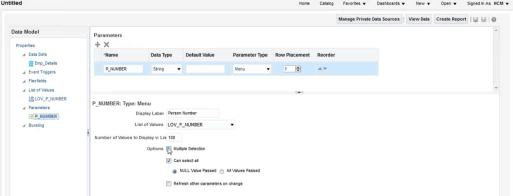
| Adding List Of Value To Report
|


 |
||
 |
||
 |
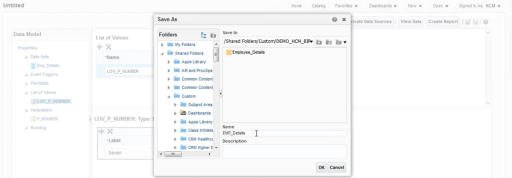
| Save Report To Custom Folder
|
||
| Creating BIP Report
First click on “Save As Sample Data” to save xml structure for creating template based report.
|
||
 |

 |
||
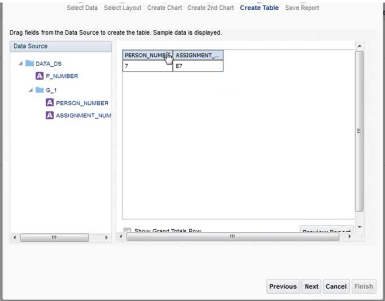
Click on Next |
||
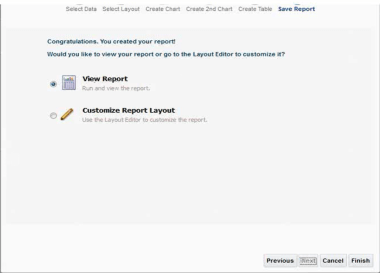
Click on Finish |

Save the report to the folder on the server |
||
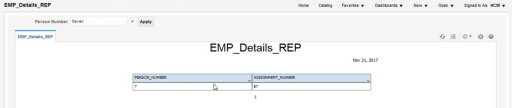
| Report output from server
End of session…… |
||


Thank For Explaining Each and Every thing sir.
Oracle Fusion Hcm Online Training
LikeLike