| Manage Business Unit and Set Assignment Continue… | ||

Click on Add User Account to add user. |
||

Associated person type None means this person is implementation user |
||

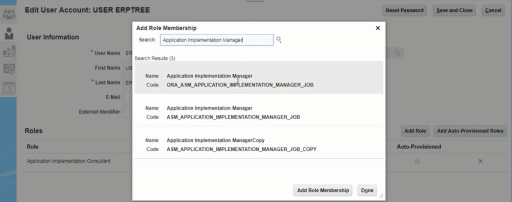
Add roles to user |
 |
||
 |
||

Roles selected should start with “ORA” and must end with “JOB” |
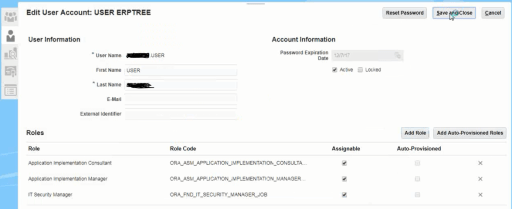
Once the changes are saved then log out and log back in with new user created. |
||
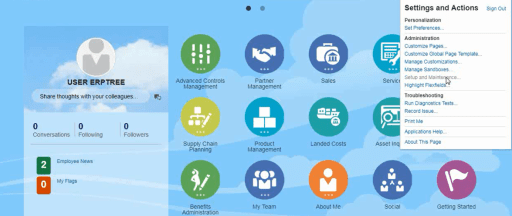
Once login with new implementation user then navigate to “Setup and Maintenance”. |
||
| To be Continued from Previous Post Business Unit and Reference Data Sets
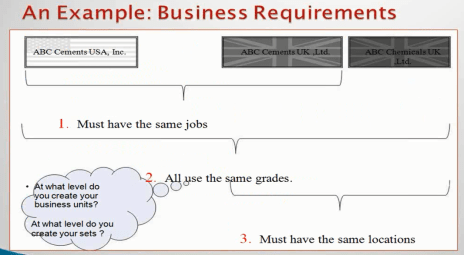
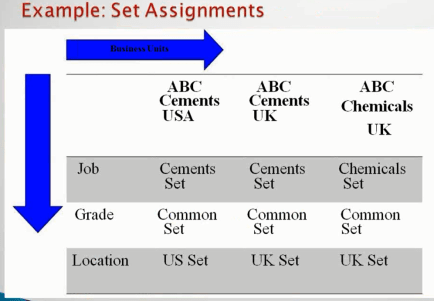
Consider following situation
|
|
||
| Original Situation
|
||
| Requirement 2 solution:
We can assign Common Set to Grades so grades will be visible across all three legal entities. |
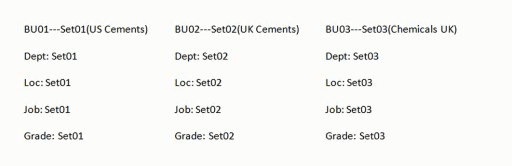

| Requirement 1 Solution:
|
||
| Requirement 3 Solutions:
|
||
| How To Create Reference Data Set
|
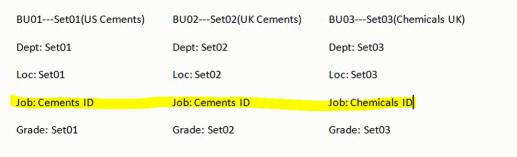



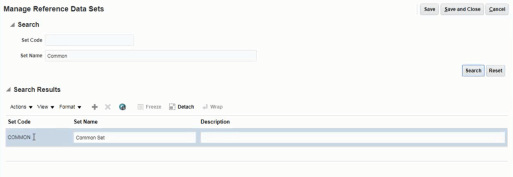
Common Set is already delivered, to create new set click on (+) sign. |
||
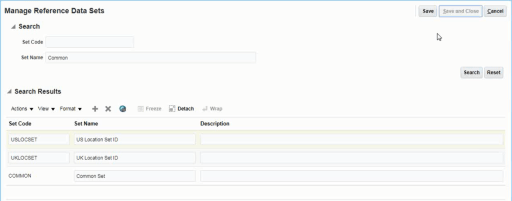
Click on “Save and Close” to save new set id’s being created. |
||
| How to Use “Manage Set Assignments” to override Set id for business objects
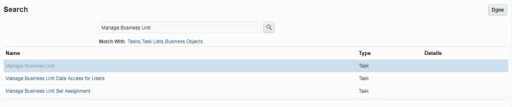
Select “Manage Business Unit” then click on (+) sign to create additional business unit. |
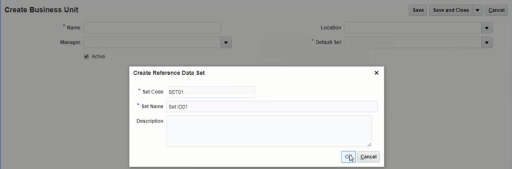
| You can also create set id from business unit page as follows
|
||

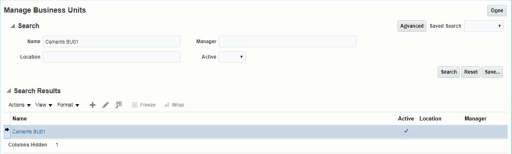
Save Business Unit being created then query “Cements BU01” business unit |
||
| Select Business Unit
Then Click on Actions drop down |
| Then Select “Manage Set Assignments”
|
||

By default all the objects for this business unit will have set id as “SET01” which we assign while creating business unit. |
||

Now change the Set ID for Location to as follows
|


 |
||
 Enterprise Resource Planning and Integrations BlogSpot